Figma to Code: The Complete Guide to Converting Your Designs into a Real Website
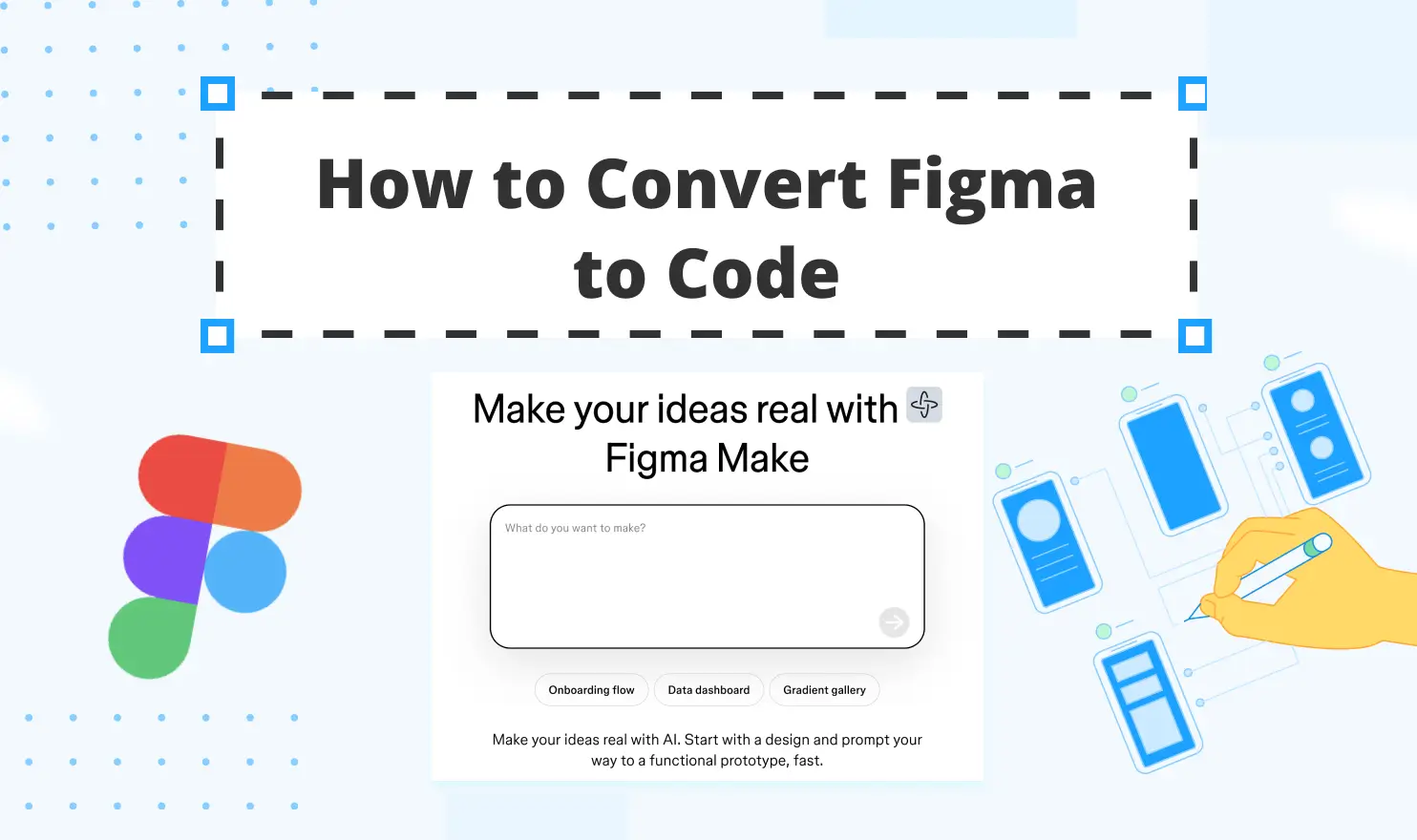
Converting Figma Designs to Code
No-code, low-code platforms, and AI website builders have become genuinely useful options for non-technical users. Figma is a powerful design tool — but can it generate a functional website? Here's everything you need to know.
Why Convert Figma to Code?
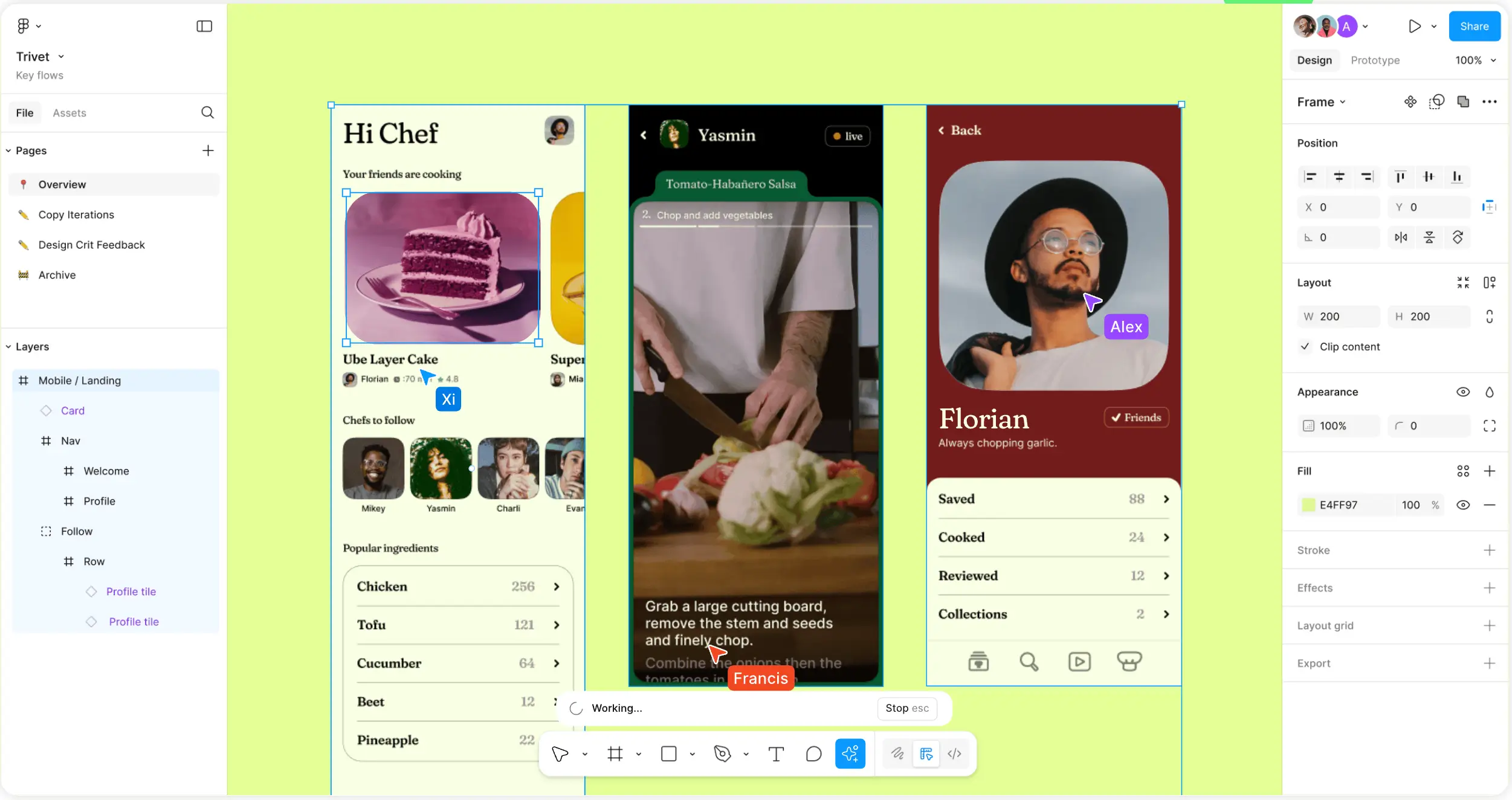
Figma (opens new window) is a leading collaborative platform allowing users to prototype and build products in a fast, efficient way. It allows users to create a mockup and turn visual layouts into functional code that can be edited, tested, and exported. It takes visual prototypes — layout, fonts, spacing, colors — and translates them into the language that browsers speak: HTML, CSS, and JavaScript.
Automated conversion tools change the workflow: instead of handing a mockup to a developer who manually recreates it in code, designers and non-technical users can export a working page in minutes.
Available Conversion Methods
There are several ways to convert Figma to code. Depending on your goals, technical skills, and budget, the main routes are:
- Plugins — integrated directly into the interface, these modules transform layouts into clean HTML/CSS.
- AI-powered tools — the Figma MCP server brings visual architecture directly into agentic coding tools, including Cursor, Windsurf, and Claude, etc. It speeds up the design-to-code workflow.
- No-code builders with Figma integration — platforms like Framer (opens new window), Webflow (opens new window), and Figma's Sites feature (opens new window) let you go from an idea to a published website without getting into the details of coding.
- Manual export + developer handoff — using the software's Dev Mode to give developers accurate specs, fonts, and asset exports to build from.
Let's explore each option in detail to identify which best aligns with a specific workflow.
Top Plugins Overview
Plugins are probably the most popular way to convert Figma projects to code. They exist inside the platform, so there's no file export or tool-switching required. Select a frame, run the plugin, and get the code.
The most widely used plugins today:
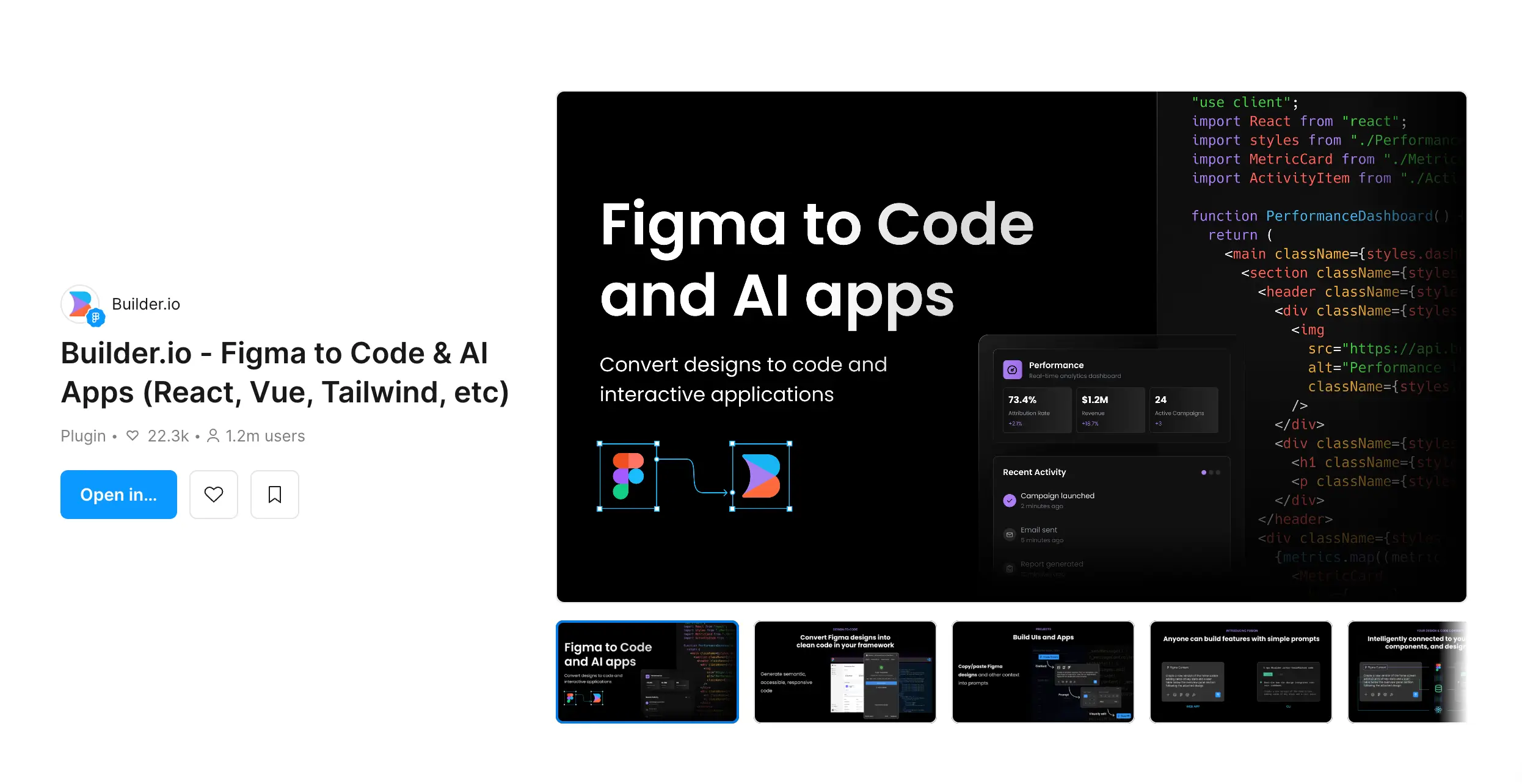
Builder.io supports React, Next.js, Vue, Svelte, Angular, HTML, and more, with no special prep needed in your design files. Users can choose their preferred styling approach — Tailwind, CSS Modules, or Styled Components — and refine output using text instructions. Regenerating sections and keeping manual edits makes the workflow productive from the first export.
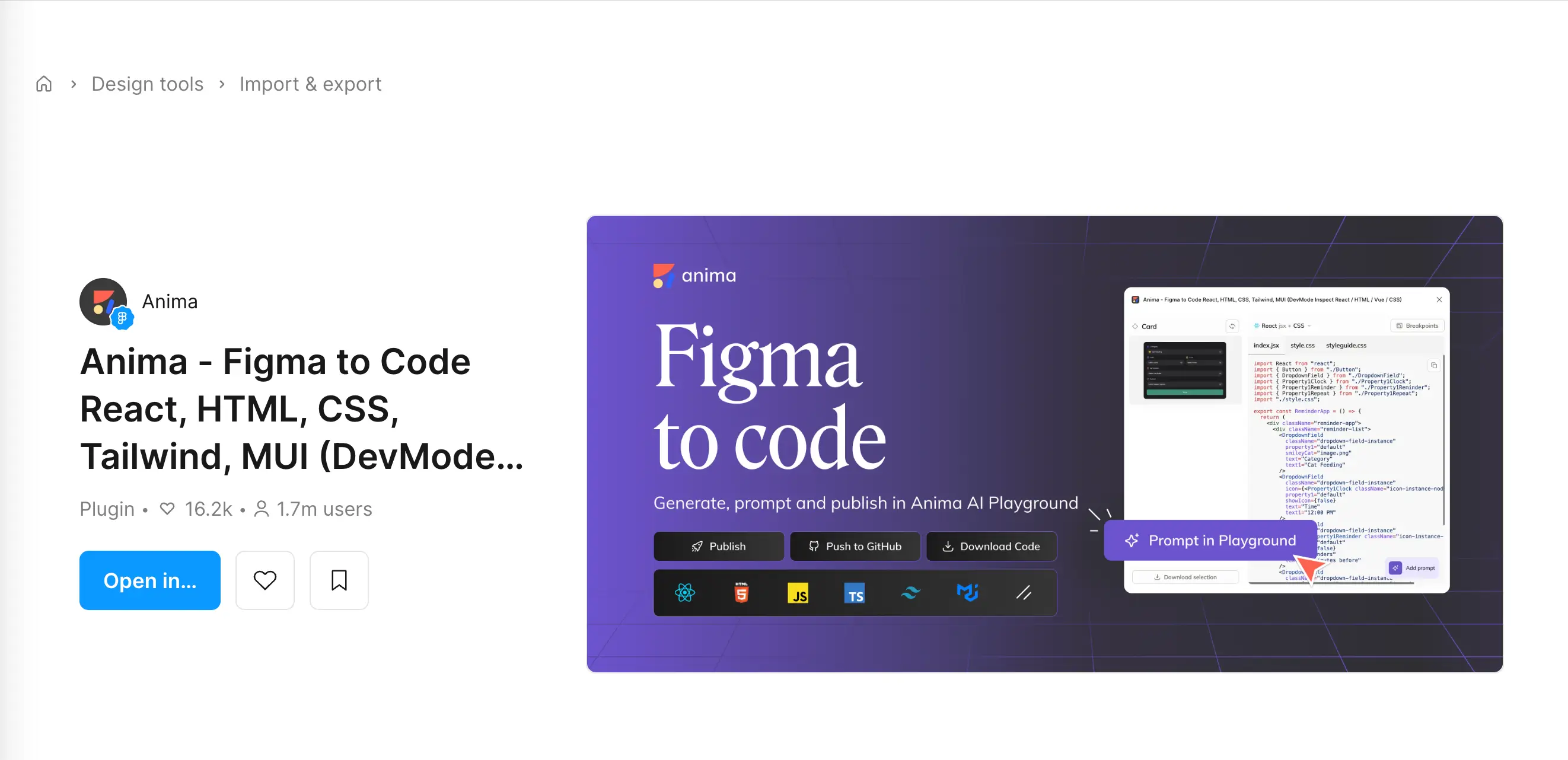
Anima is a favorite for marketing sites and landing pages. It converts components into HTML, CSS, React, and Vue, and offers a live preview inside the plugin before export.
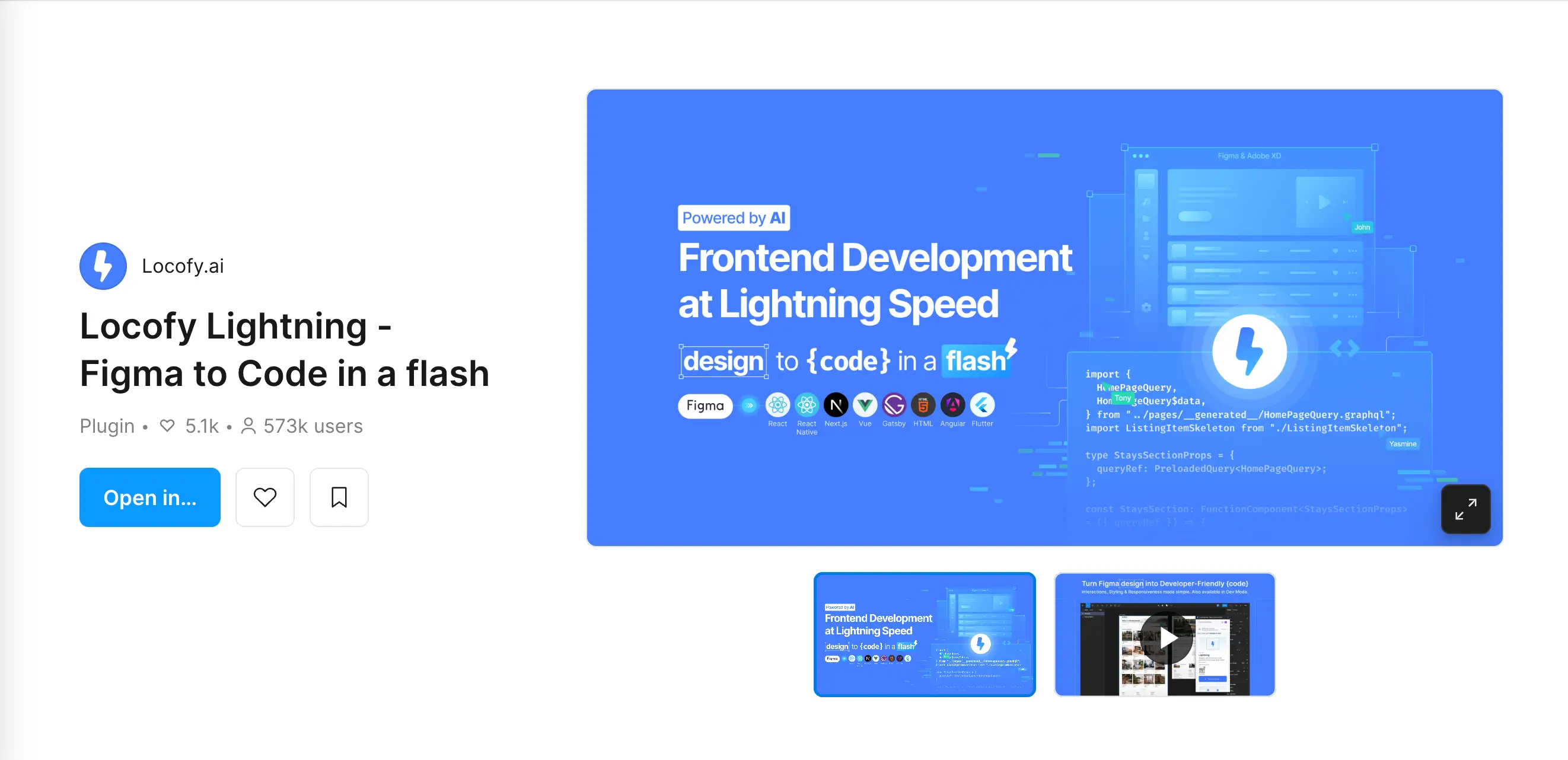
Locofy Lightning uses an AI engine trained on millions of design examples to understand and convert projects with high accuracy. It supports React, React Native, Flutter, Next.js, Angular, Vue, Gatsby, and HTML/CSS, with a Locofy Builder environment for reviewing and editing the output.
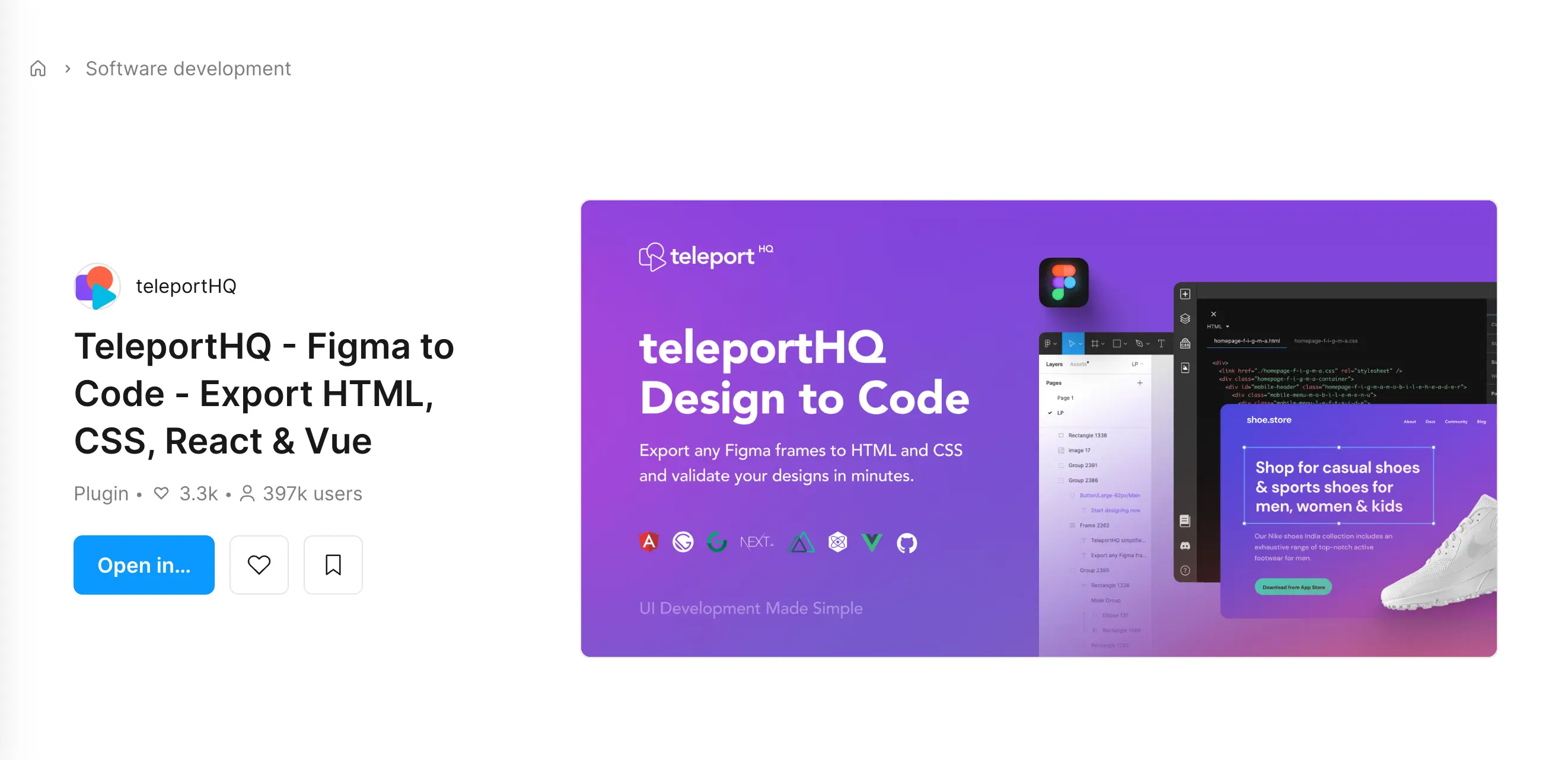
TeleportHQ suits projects that need to ship fast. It generates HTML, CSS, React, Nuxt, Angular, and Vue code, with direct publishing options and a live preview URL out of the box.
Export Quality and Limitations
Plugin output quality depends heavily on how the source file is structured. Proper auto layout, consistent components, and organized layers produce cleaner, more manageable code. Chaotic files — overlapping layers, free-floating elements, unnamed components — produce output no developer wants to touch.
Most extensions handle HTML and CSS well but can't generate real interactivity or backend logic. Form submissions, database connections, and user authentication need to be added separately. For landing pages and static websites, plugins are a strong starting point; complex web apps require additional development work.
AI-Powered Conversion Tools
AI-powered tools go further than rule-based extensions. They help make high-impact optimization accessible to small entrepreneurs allowing them to compete with large corporations.
How AI Generates Code from Design
Instead of using rules-based logic to map Figma layers to HTML elements, AI-powered tools use computer vision and large language models to actually understand visual architecture — the way a developer would — before generating code.
AI recognizes a navigation bar as a <nav>, a card grid as a repeating component, and a hero section as a hero section. The resulting code tends to be more semantic (which is better for SEO and accessibility) and more readable.
Accuracy and Customization Options
AI performance varies a lot in how closely the output reflects the original design. The best ones are pixel-perfect on layout and typography. Where things sometimes slip is in interactive states (hover effects, focus states) and complex animations, often requiring manual adjustment.
Most AI agents let you customize the output before downloading. You can specify preferred frameworks (React vs. Vue vs. plain HTML), CSS approach (Tailwind vs. standard CSS), and in some cases give natural language instructions like "make the header sticky" or "add a fade-in animation to the hero section."
Popular AI Tools Review
Builder.io's AI conversion is probably the most tested option. It handles responsive layouts automatically, maps Figma components to code components, and produces output that are clean and easy to edit. You can iterate with prompts and refine the result.
Locofy Lightning optimizes visual architecture for auto-layout with proper layer grouping and makes single layouts responsive, working smoothly on desktop, mobile, and tablet. Additionally, it improves layer and class names for cleaner code & collaboration.
Figma Make is an AI-powered prototyping tool. It's focused on generating working prototypes from natural language prompts. Describe the product, and the software will build it with real navigation, forms, and interactions.
Output Options
HTML and CSS Export
HTML and CSS are considered to be the simplest and most universal output formats. Every tool supports them, and the resulting files can be opened in any browser without any build process.
HTML/CSS export is ideal for:
- Static landing pages;
- Email templates;
- Simple portfolio websites;
- Prototypes that need to be shared as browser URLs.
The downside is that plain HTML/CSS doesn't scale well for large websites or apps. You'll hit limits quickly if you need repeated components, dynamic content, or complicated interactive features.
JavaScript and Interactions
Some tools go beyond static HTML and include JavaScript for interactions — scroll animations, hover states, dropdown menus, form validation, etc. The quality of this varies a lot. Simple interactions usually export fine; complex ones often need developer involvement.
If the design has lots of interactions, opt for tools that specifically advertise interaction support. Anima, Builder.io, and Figma Sites handle basic JavaScript interactions pretty well.
Tailwind and Framework Support
Many developers prefer Tailwind CSS for its utility-first styling approach. It keeps CSS files small and is fast to write and easy to customize. Several major conversion tools now generate Tailwind output in addition to standard CSS.
Builder.io, Anima, and Locofy Lightning all support Tailwind export. If your team uses Tailwind, this is a massive benefit — the code they receive will already use the utility classes they're familiar with.
No-Code Builders with Figma Integration
No-code platforms operate on a different logic and provide fast and budget-friendly solutions for non-technical users. Instead of creating code, they let users publish a live website directly without getting into the intricacies of syntax.
Figma to Website Builders
Many platforms allow subscribers to utilize their Figma projects and convert them into fully-functional websites with the necessary functionality.
The most relevant no-code options are:
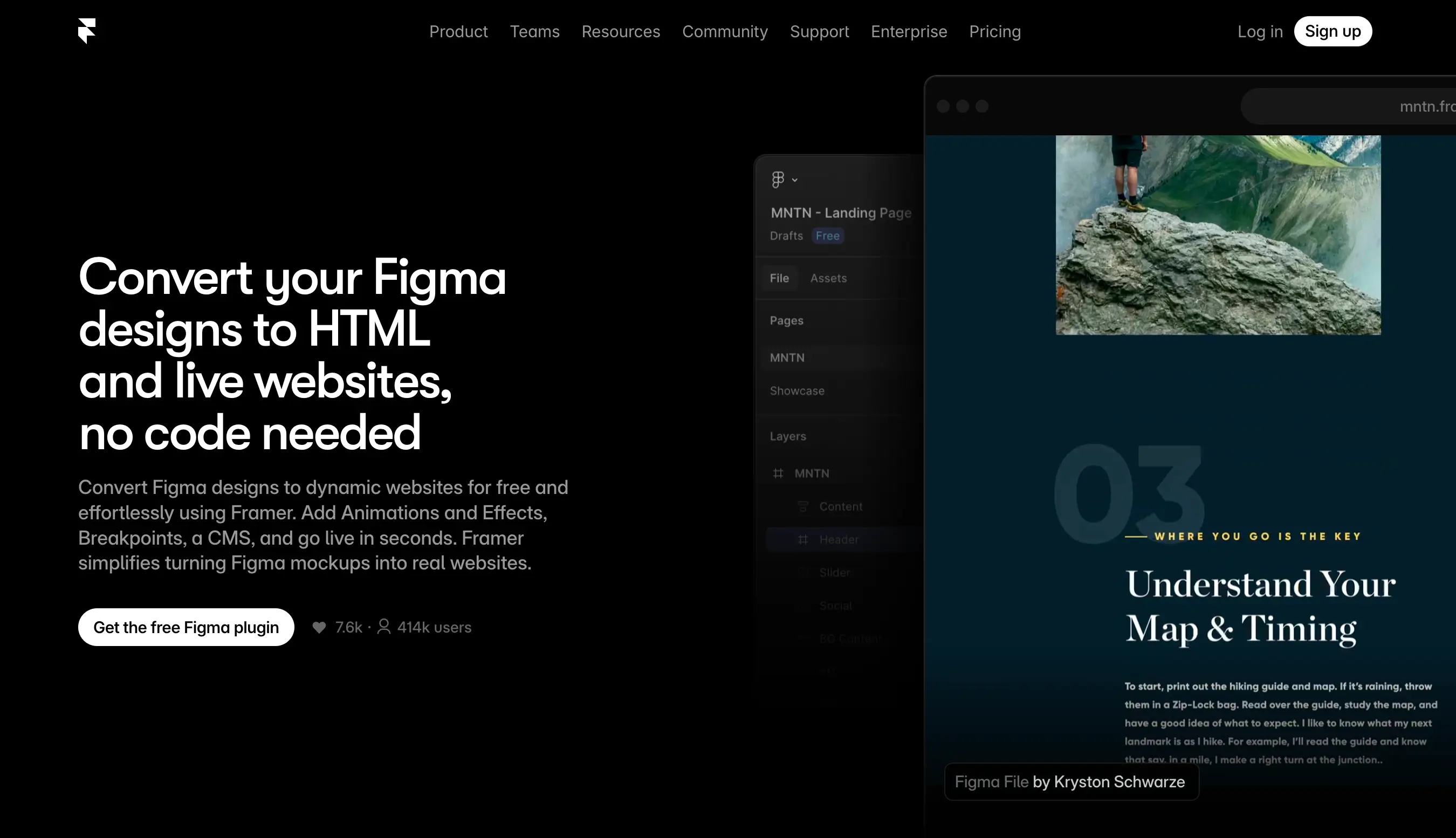
Framer imports Figma components and lets you build on them in a visual interface before publishing using the Figma to HTML with Framer plugin (opens new window). Settings such as auto layout, hierarchy, and fill properties are transferred automatically. Framer handles hosting, performance enhancement, and basic CMS functionality.
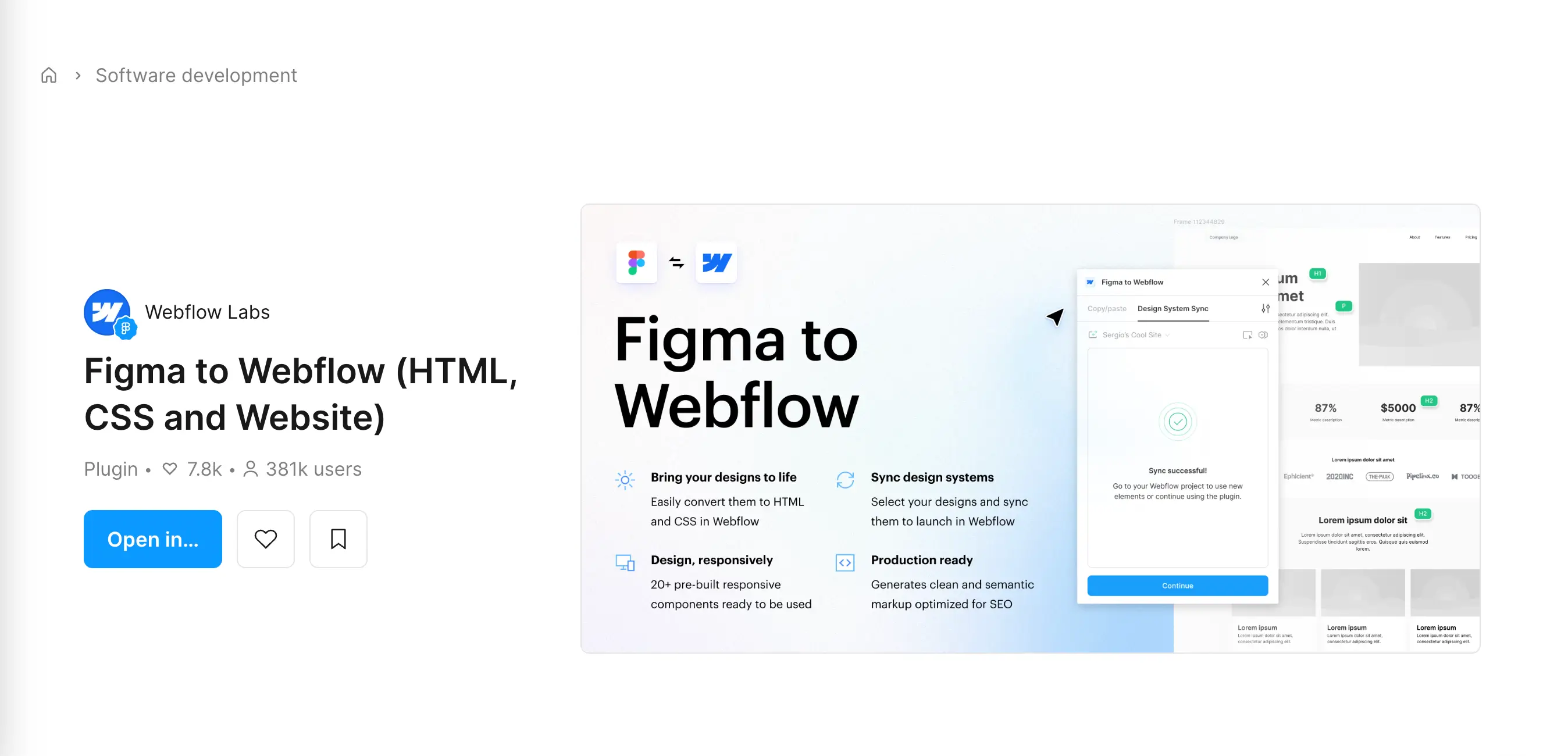
Webflow doesn't import Figma files directly. The Figma to Webflow plugin (opens new window) and app let users sync components, variables, styles, etc. into the builder. Webflow offers advanced CMS features, SEO controls, and a polished end result.
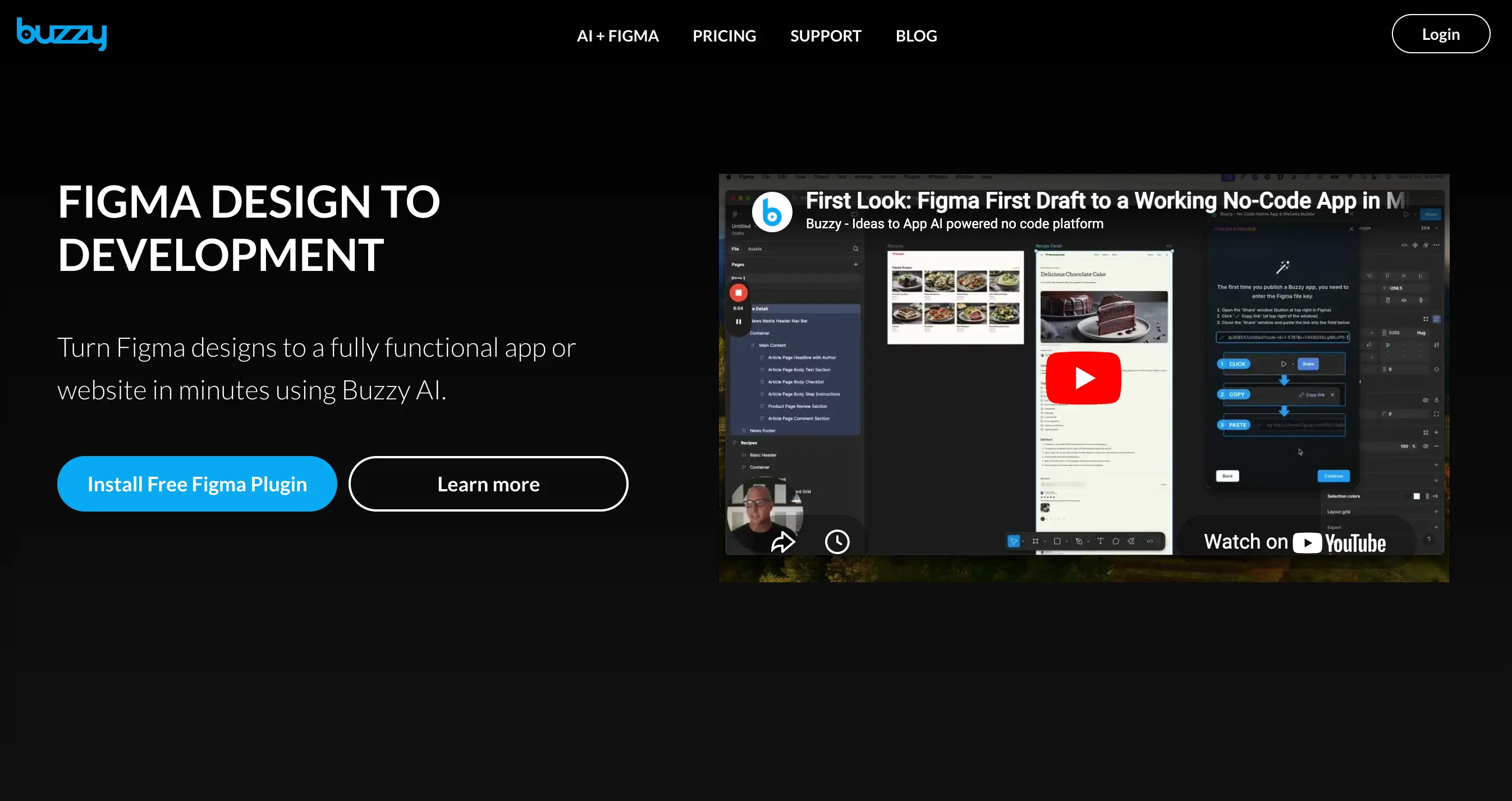
Buzzy (opens new window) has launched a powerful AI AutoMarkup feature that converts projects into web and native apps in no time. The plugin includes a front-end interface and the no-code back-end/content management system.
Publishing Directly from Figma
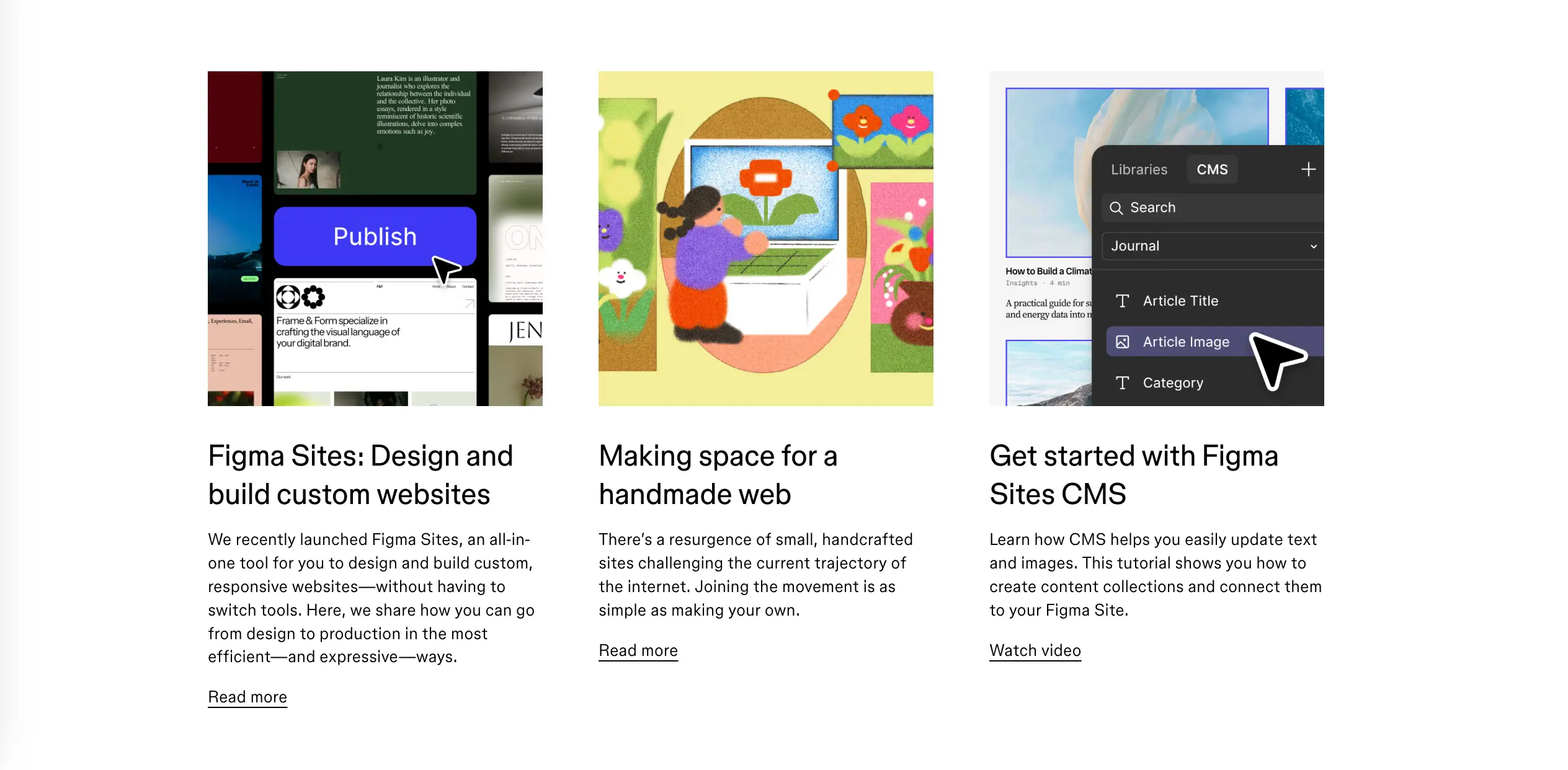
Figma Sites (opens new window) is an all-in-one tool that lets subscribers develop and publish a website entirely within the software without external involvement and developer involvement.
How it works:
- Copy the design into a Figma Sites project/Start with a preexisting template/Assemble a website using preexisting blocks.
- Add webpages and breakpoints. Select, and edit objects across all breakpoints.
- Preview the project: check responsiveness, animations, and interactions.
- Publish.
Component Reusability
One of the key benefits of design-to-code solutions that understand Figma's component system is that they can generate reusable syntax elements that mirror your project's elements. It optimizes the workflow of teams maintaining a design system. Builder.io supports mapping Figma components to existing code components allowing creators to efficiently reuse what they already have.
Free vs Paid Conversion Services
Free Tools Capabilities
Most conversion tools offer a free tier with limited features. Here's what users can typically expect for free:
- Basic HTML/CSS export from a limited number of frames
- Watermarked or subdomain-hosted published pages
- Access to one or two framework output options
- No commercial use in some cases
For personal projects, learning, and early-stage prototyping, free tiers are often more than enough. Anima, Builder.io, and TeleportHQ all let you get a feel for the tool before opting for a subscription.
Premium Features Worth Paying For
If you're using these tools for client work or for creating production websites, then there are several features that must be prioritized, including unlimited exports, developer-friendly, clean syntax, Tailwind and framework support, custom domain publishing, and team collaboration.
For a top-level agency or a skilled product team, the time saved by a good conversion tool typically pays for the subscription many times over.
Quality and Performance Considerations
Code Cleanliness and Structure
Not all auto-generated computer language is created equal. The common complaints about conversion tools include:
- Excess of nested divs with no semantic meaning
- Absolute positioning instead of flexible layouts
- Inconsistent naming conventions
- Redundant CSS that bloats file size
The best tools have gotten much better when it comes to solving the above problems. They produce code with proper heading hierarchy, semantic HTML tags (nav, section, article, footer), and CSS. To evaluate the functionality, paste a sample output into an HTML validator or show it to an experienced developer and ask for their feedback.
SEO and Accessibility
A website that looks great but can't be found by the target audience on Google is pointless. Top-level tools now pay explicit attention to semantic HTML, Alt text support, correct heading hierarchy, ARIA labels, and Keyboard navigation. Figma Sites has recently improved its semantic HTML output, and both Anima and Locofy Lightning generate more accessible code than their earlier versions.
Pro tip: Always run an auto-generated site through an accessibility checker.
Page Speed Impact
Auto-generated code can sometimes produce heavier files than a developer. Unnecessary CSS, unoptimized image exports, and missing compression can slow your page down, which is bad for both user experience and SEO rankings.
Things to check after export:
- Resolution and format of images.
- CSS minification.
- Large JavaScript files.
Tools like Google PageSpeed Insights will give you a score and specific recommendations. Most issues are fixable without deep technical knowledge.
When to Use Automated Conversion
Best Use Cases
Automated Figma-to-code conversion works best when:
- You need a landing page or marketing site built quickly;
- You're building a prototype or MVP;
- You're a designer who wants to work independently;
- You're working on a small-to-medium project with a well-structured Figma file;
When Manual Coding is Better
In some cases, asking a developer to build from scratch is more beneficial:
- Complex web applications with lots of real-time data and custom interactions;
- Projects with existing codebases following strict architecture patterns;
- High-performance sites where every kilobyte matters and code must be highly optimized;
- Design systems at scale where component mapping is too complex for AI tools to handle correctly;
- Accessibility-critical products where every element needs careful manual attention
Hybrid Approach Recommendations
The smartest teams don't choose between automated conversion and manual coding — they combine the benefits of both. A designer exports the Figma layout structure using a plugin. Next, a developer receives clean, component-based syntax and connects data sources, adds business logic, and optimizes performance. This approach helps cut front-end build time significantly while still resulting in production-quality computer language.
Conclusion: Choosing the Right Conversion Method
Whether you're a designer who wants to publish a website on your own, a developer looking to skip the time-consuming manual work, or a founder trying to get an MVP without a massive budget, applying the Figma to code approach might turn out really beneficial for all these scenarios. The golden rule is: start with a well-structured file. Use auto layout consistently, name the layers clearly, and organize the components properly. The better the input, the better the output — that's true for every tool featured in this guide.