

By embedding Google Sheets into your website, you save yourself a lot of time and effort on updating your site. With an embedded spreadsheet, you can easily share live data, interactive charts, and collaborative projects with your audience. Every update you make in the sheet is automatically reflected on your website in real-time.
This guide will walk you through the simple steps to embed a Google Sheet and ensure it looks great across various platforms, including WordPress.
Why embedding Google Sheets is useful
Embedding Google Sheets into a website offers many benefits:
- Easy management of lists or catalogs: You can store and organize data such as menus, product lists, or link directories in a Google Sheet.
- Quick updates: Make changes directly in the Google Sheet without accessing the website’s admin panel.
- Full use of Google Sheets formulas: All formulas and calculations supported by Google Sheets can be applied, making data management more efficient.
- No need for a site administrator: You can update the content yourself, without waiting for someone else to make the changes.
- Save time: Update your information instantly and avoid delays.
- Mobile access: Make updates even from your phone, ensuring your data is always up-to-date wherever you are.
This makes Google Sheets a powerful tool for keeping your website’s content accurate and relevant with minimal effort. Plus, with tools like SpreadSimple, you can transform your spreadsheet into a sleek widget, adding a polished look to your site instead of just displaying a basic table.
How to format your Google Sheet for embedding
Before embedding your Google Sheet, it's important to organize the content properly. Here are a few tips to ensure the sheet displays correctly on your website:
- Remove unnecessary rows and columns.
- Each column should be dedicated to a specific type of information and formatted accordingly. For example, if the column contains prices, format the cells as currency. If it's text, keep it as plain text. If you are embedding images, use links to the images.
- If you want images to display correctly on your website, it’s best to upload them to an image storage service.
You can easily do this using a Chrome extension like SpreadSimple's Image Uploader, which helps manage and link images in Google Sheets.
By following these guidelines, your Google Sheet will be properly formatted and ready for creating a widget for embedding into your website.
Step-by-Step process for embedding Google Sheets — widget style
If your goal is to create a website in SpreadSimple for embedding into another platform, you don’t need a domain. The focus here is on building a Google Sheets-powered site that can be easily embedded anywhere. Here's how to do it:
1. Sign up for SpreadSimple
Go to the SpreadSimple website and sign up using your Google Account.
2. Create a website using Google Sheets

- Once signed in, click on From your Google Sheet.
- Insert a link to a Google Sheet that contains the data you want to display, such as a product catalog, menu, or directory.
- SpreadSimple will automatically turn the sheet into a functional website with search, sorting, and filtering options.
3. Customize the website and create a widget
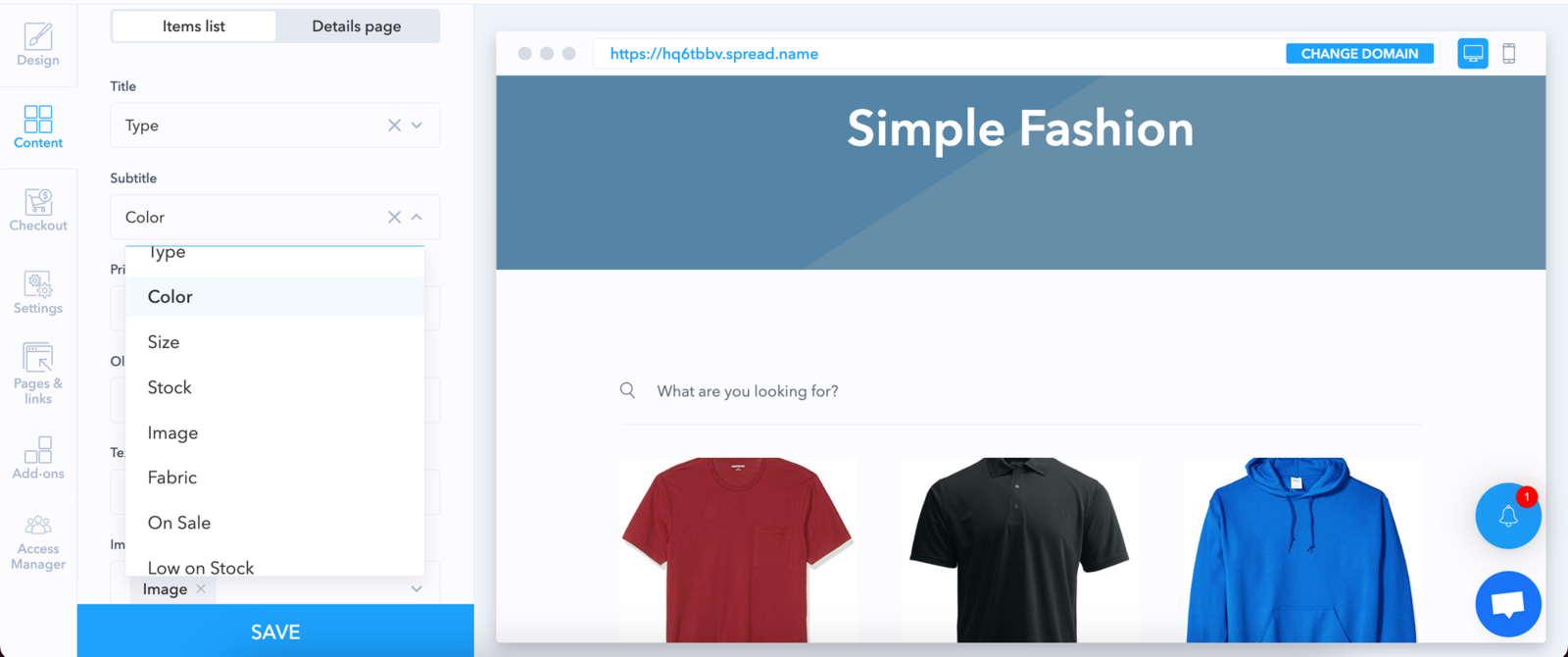
- Customize the website: select how each row of your spreadsheet should display on the website.
- You can enable features like filters, sorting and search to improve user experience.
- Go to Settings and open Widget settings. Open the Widget builder and routing option and widget path.
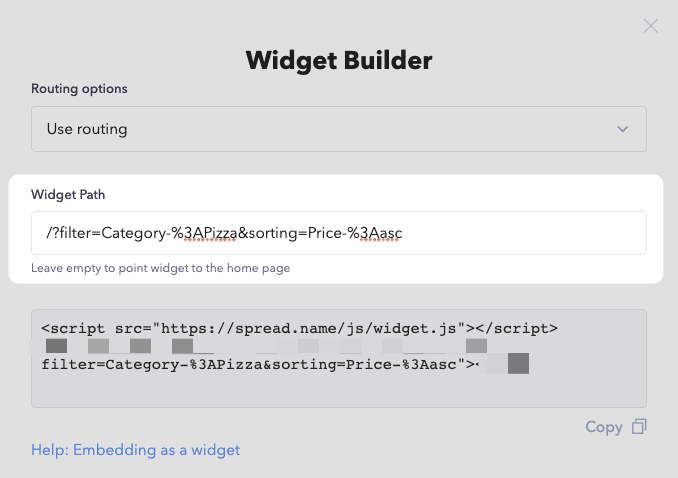
By default, widgets use something called "routing." This means they add a little extra part to the website address when you use them (for example: domain.com/#/item/item-one). It usually helps keep everything on the website working smoothly. But sometimes, this extra part, the hash (#), can cause problems if your website uses special links called anchor links. If this happens, you can choose "no routing." This way, the widget won't change the website address at all.
If you want to show just one category of items instead of everything, you can set a widget path. To do this, go to your SpreadSimple site, pick the category or sorting you want, and copy the address from the browser's address bar. It will look like this https://my-website.spread.sh/?filter=Category-%3APizza&sorting=Price-%3Aasc.
Then, paste this address into the widget path field. If you want to show the entire list, just leave this field empty.
4. Copy the Embed Code
- Once your widget is set up, copy the provided embed code:
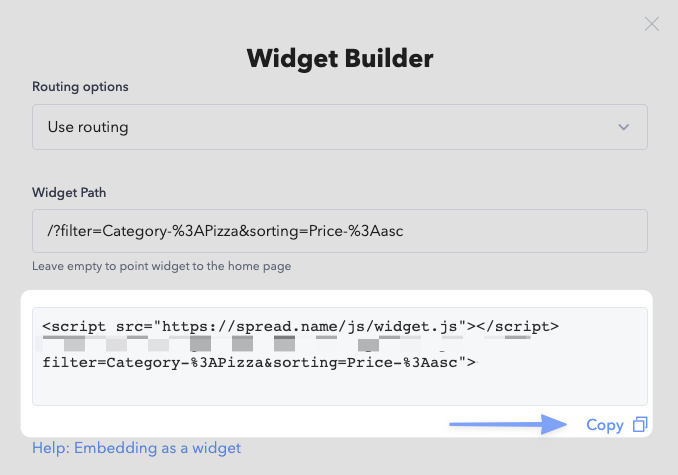
This code allows you to embed your SpreadSimple-powered site as a widget in any website.
5. Embed your SpreadSimple widget
- Paste the code into the embed field of your host website powered by WordPress, Wix, Webflow, or any other builder.
- You can adjust the widget size using simple modifications to the iframe code for width and height.
There is no need to purchase or connect a domain if your goal is embedding. SpreadSimple allows you to use Google Sheets as a backend while embedding dynamic content directly onto any platform.

Updating Google Sheets in real time
One of the best features of embedding Google Sheets is that any changes made to the sheet are updated automatically on the website. There is no need to re-embed the sheet or update any code. This is especially helpful for sites that display constantly changing data, like financial reports or event schedules.
Troubleshooting common issues with Google sheets embedded via SpreadSimple
When embedding Google Sheets through a SpreadSimple widget, a few common issues can arise. Here’s how to resolve them:
Display errors:
- Ensure that the Google Sheet is properly linked to your SpreadSimple widget and that the widget code is correctly embedded on the host site. Double-check the Google Sheet’s sharing settings to make sure it is publicly accessible.
- If the widget doesn't appear correctly, confirm that the iframe or widget embed code was copied and pasted accurately into the host website's HTML.
Slow loading
- Large Google Sheets with many rows or complex formulas can cause slow loading times for the widget. To improve performance, consider breaking your data into smaller sheets or only embedding a specific filtered category or range using SpreadSimple’s filtering and sorting options.
- Another option is to optimize the layout and reduce unnecessary data in the Google Sheet to speed up load times.
Mobile compatibility
- SpreadSimple automatically optimizes embedded widgets for mobile devices, but you may still encounter layout issues. Ensure that the widget's width is set to be responsive, either by configuring this in SpreadSimple’s settings or by adjusting the iframe’s CSS.
- Use CSS to modify the widget's appearance on different screen sizes, ensuring that the content adjusts seamlessly to mobile, tablet, and desktop views.
Widget not updating in real-time
- If the data in your Google Sheet does not update on the embedded site, verify that the widget is pulling data correctly from the sheet. Ensure the widget is live and connected properly to your Google Sheet. You can also refresh the site or re-embed the widget if the issue persists.
These steps will help ensure your SpreadSimple widget functions smoothly, keeping your embedded Google Sheet content efficient and user-friendly
What CMS or website builders can use embedded Google Sheets with the SpreadSimple widget?
The SpreadSimple widget, powered by Google Sheets, can be embedded into many different CMS platforms and website builders. Below are the most common ones where this widget is compatible.
1. WordPress
Embed the widget by using the Custom HTML block. This allows easy integration into pages or posts without needing any plugins. Simply paste the iframe code and update the page.
Ideal for WordPress sites that need live, up-to-date content like catalogs or menus.
2. Wix
In Wix, go to the Plus icon, choose Embed > HTML iframe, and paste the widget code. You can adjust the size and positioning directly within the editor.
This allows for seamless integration, whether you’re displaying a product list or another dynamic dataset.
3. Squarespace
In Squarespace, use the Code Injection option, which is found in the Settings > Advanced tab. Paste the widget code into the Header or Footer sections.
This works well for embedding interactive widgets without affecting the overall website design.
4. Webflow
Webflow allows embedding by dragging an Embed element into the page design, and then pasting the SpreadSimple widget code into the HTML editor. This offers extensive control over design and functionality.
Suitable for more customized websites needing live data integration.
5. Weebly
In Weebly, go to the editor, click Add Section, and then select Embed Code. Paste the widget code, and it will automatically render the Google Sheets-based content.
Great for users who want quick integration with minimal setup.
6. Carrd
Carrd, a simple website builder, supports embedding through the Embed block. You can adjust the positioning and size to fit your layout. It’s useful for small websites that want to integrate live data from Google Sheets.
7. Static Websites
Even static websites can use the widget by embedding the iframe code directly into their HTML. This allows you to show dynamic content without needing a CMS or any complex infrastructure.
8. Other CMS or Website Builders
Most modern CMS platforms that support custom HTML or iframe embedding (such as Joomla, Drupal, and Shopify) will also work with the SpreadSimple widget. The general process involves pasting the embed code into an HTML or custom code block.
These platforms offer varying degrees of customization and design control, but SpreadSimple’s flexibility ensures compatibility across a wide range of website builders
Website vs Google Sheets embedded with SpreadSimple widget
Embedding Google Sheets into your website allows you to display live, interactive data. Whether you’re using WordPress or another platform, the process is simple. By following the steps in this guide, you can share dynamic data with your audience quickly and easily. Keep your data fresh and your site engaging with real-time updates from Google Sheets.
FAQ: Embedding Google Sheets via SpreadSimple
What is SpreadSimple, and why should I use it to embed Google Sheets?
SpreadSimple is a tool that allows you to turn Google Sheets into a dynamic website or widget. It’s great for embedding because it requires no coding skills and updates in real-time, making it easy to manage and display live data, catalogs, or lists on any website.
Can I customize how my embedded Google Sheet looks?
Yes, you can modify the appearance by adjusting the iframe width and height or using custom CSS for additional styling. However, SpreadSimple provides template-based customization, so flexibility is somewhat limited compared to fully custom-built websites.
Do I need coding skills to use SpreadSimple?
No, SpreadSimple is designed for users with little to no coding skills. It’s easy to set up by linking your Google Sheets and using the provided templates and embed codes.
Can I filter or sort data in my Google Sheet before embedding?
Yes, SpreadSimple allows you to apply filters and sorting options in the Google Sheet, so you can control which data is displayed on the embedded site or widget.
Are there any costs associated with using SpreadSimple?
Yes, the widget functionality is available only on paid plans. The most affordable plan starts at $12.9 per month. However, all plans come with a 14-day free trial, allowing you to test and ensure that SpreadSimple meets your needs before committing. You can compare the different pricing options to find the one that best fits your requirements.