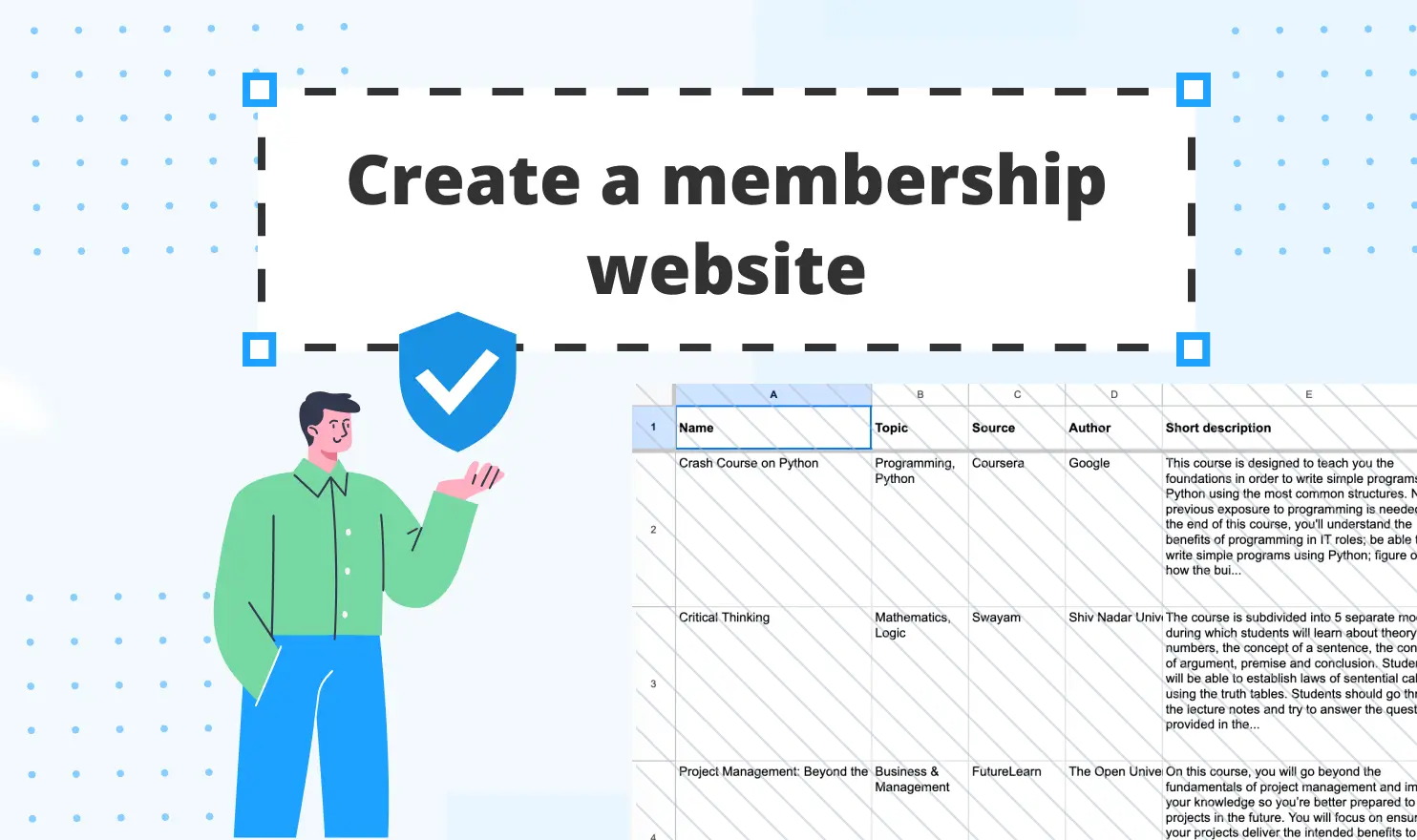
A membership website is a site where some or all of the content is available only to people who have signed in, usually because they paid, were invited, or got approved by the platform administrator. The core idea is to show different information to certain users.
Nowadays, you don’t need a massive budget, developer’s services, or needlessly complex software to build your website with gated content. In this guide, we give you a cheat code on how to create a membership website from a Google Sheet using SpreadSimple's Access Manager.
Membership website examples

Before configuring your setup, take the time to clearly define what you’re building. The five types cover most real projects, and each one functions as a membership website mockup whose structure you can rely on in your project.
Private directory
A list of vetted suppliers, tutors, or local services where full contact details are visible to members only. Visitors see names and categories. Members get access to detailed information, like phone numbers and emails. If you haven't picked a no-code platform yet, our comparison of the best directory website builders for maintaining data after launch is a good place to start.
Client portal
A client portal is a secure, private online website where a business and its clients can safely share files, track project progress, communicate, and handle invoices conveniently in one place.
Wholesale price list
Approved buyers of a wholesale online store see wholesale pricing tiers, MOQs, specs, etc. The wholesale store guide shows this setup in detail, including best products to sell online.
Course library
Such websites contain lessons, videos, and worksheets grouped by plan. A basic member can usually browse the first module to evaluate, whether they need the whole course or not. A premium member gets broader access to the entire learning program, often with personal tutor guidance.
Community resources
Templates, event recordings, job boards, and member discounts for an association or an online community. Let’s take Patreon (opens new window), for example: creators decide post by post whether something is visible to selected tiers, to all paid members or to everyone. Its help center suggests letting free members see some of the exclusive work, so they understand the benefits of a paid membership.
Password protection
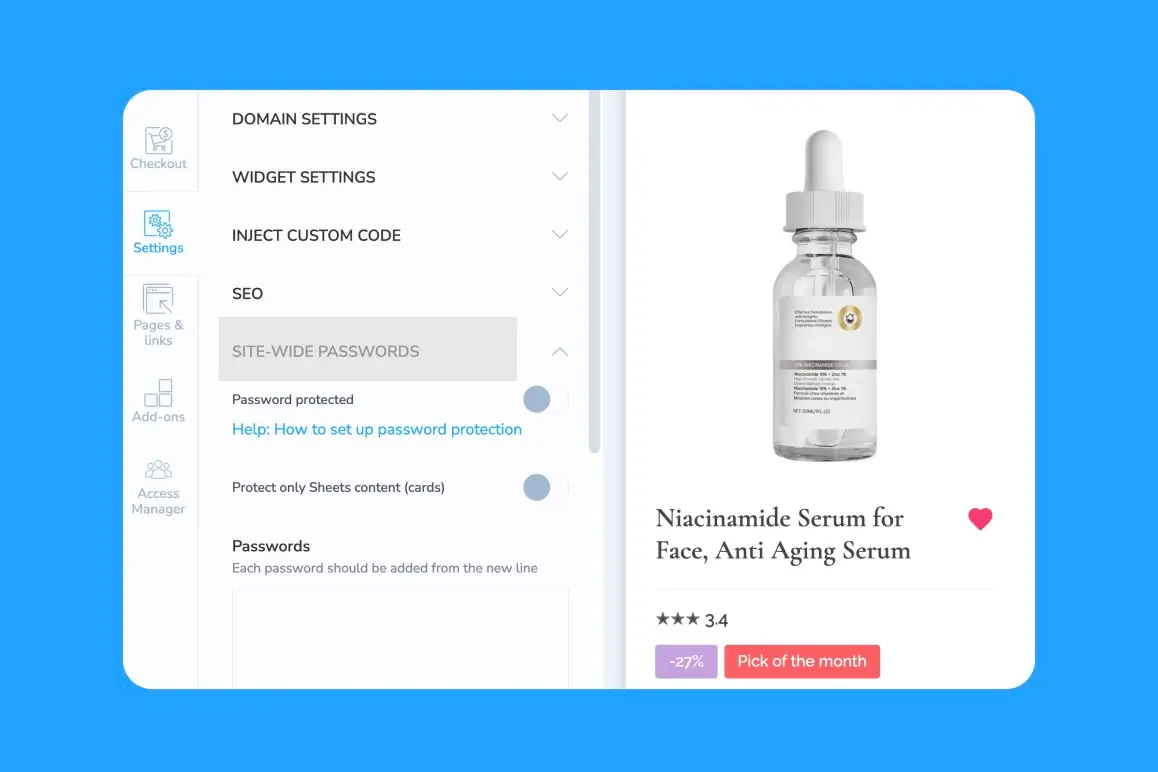
A shared password is one of the quickest ways to protect your website. SpreadSimple offers site-wide password protection (opens new window) as a separate, simpler option from member logins (opens new window): you turn it on, set a password (or several passwords), and send it to your audience.
That is enough for a client preview before launch, an internal catalog or a one-off event page. It starts to hurt as the group grows. You can't take access away from one person without changing the password for everybody, and you can't show different people different content.
When member logins work better
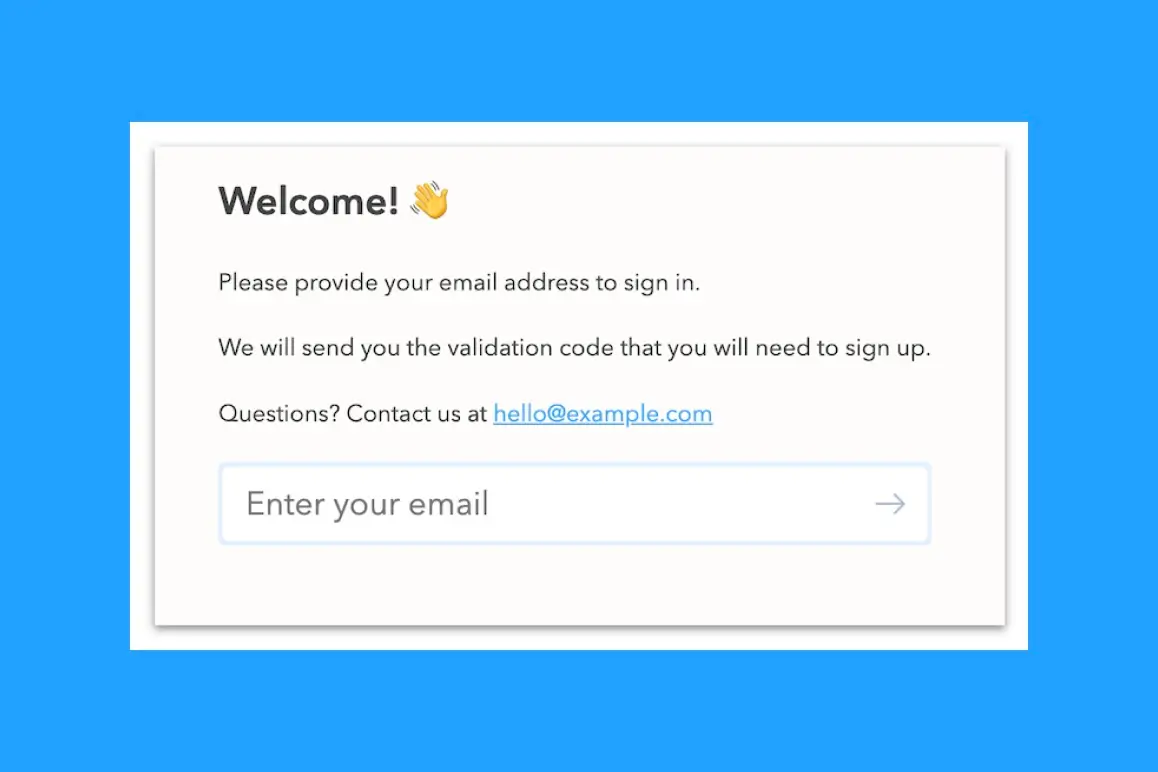
Member logins in the Access Manager work per person. Each member signs in with an email address, receives a magic link and a validation code, and gets in.
| Shared password | Member logins | |
|---|---|---|
| Who gets in | Anyone with the password | Only emails listed in your users sheet |
| Different content for different people | No | Yes, by access group |
| Removing one person | Change the password for everyone | Edit one row in the sheet |
| Setup | Minutes | Longer: sheet, groups, rules |
| Best for | Previews, internal pages, short projects | Memberships, portals, wholesale stores, online courses |
How to create a membership website in 6 steps
Here is the full process of creating gated content in SpreadSimple. All you need is a Google Sheet with your content and a few minutes per step.
Step 1: Put your content in a sheet
The content sheet is the database of your website. One row is one item, one column is one detail: title, description, price, image, category, etc. Keep the first row as headers. If your catalog or directory already lives in a sheet, this step is done. If not, start from a template (check the link at the end).
Don't write the descriptions halfheartedly. Members pay for unique information, and thin rows make a generic site. More on that in the gated content section below.
Step 2: Create the members sheet
Open the Access Manager tab and click Create Users Sheet. The template holds user emails and access groups. Fill in your first members, then refresh the user list in the tab.
Prefer your own sheet? It must meet these three conditions:
- It has headers and a user list.
- Sharing is set to "Anyone with the link can view".
- The SpreadSimple service account is invited as an editor.
If the sheet sits in a shared drive, add that account as a drive member instead of sharing only the file.
Step 3: Map the columns and plan access groups
Map the user email column and the access group column. With the template sheet the defaults are fine. With your own sheet, point each field at the right header.
Next, settle on your groups. Keep the names short and consistent, because the same spelling has to appear in the users sheet, the content sheet, and the page settings. Typical sets are free, basic and premium; wholesale and retail; or one group per client. Write them in lowercase and keep a short legend in the sheet, so you still know what each one means in six months.
Step 4: Apply rules to pages and items
You can restrict content at two levels, plus one handy exception.
- Pages. Go to Pages & links, open a page's settings, scroll to Access, and pick the groups. Visitors who aren't logged in won't see that page in the menu or open it by link.
- Items. Add a column to your source sheet with group names, separated by commas if there are several. Select that column in the access rules. If you edit both sheets at once, refresh the sheet in the Content tab.
- Exclusions. Put an exclamation mark before a group name, and the item becomes visible to everyone except that group.
Visitors who have nothing to see get an empty-state message, and you can customize it. Make it useful. "Log in to see wholesale prices" is a functional CTA that does more than a blank page.
Step 5: Customize the login page and the email
SpreadSimple creates the login page automatically. Edit its text so it speaks to your audience: who the membership is for and what members get. Do the same with the email visitors receive. That email carries a magic link and a validation code, so keep {{loginUrl}} and {{validationCode}} in the message.
Step 6: Test as a member
This is a universal step for any changes: before you announce anything, walk through the site as every type of visitor. Open a private browser window and check five things:
- Logged out: gated pages are missing from the menu, locked items are hidden, and the empty-state message reads well.
- A test email in each group: the visitor sees exactly what that group should see.
- An email that isn't in the sheet: it can't get in.
- Items with an exclusion rule: hidden from the excluded group only.
- The login email: it arrives, and both the link and the code work.
Fix mistakes in the sheet, refresh, and test again. Most problems usually turn out to be nothing more than a typo in a group name.
Keep one test email in the users sheet permanently, ideally one per group. Whenever you change a rule later, you can check the result in a minute instead of guessing.
What is gated content (and what to gate)

Let’s take a closer look at the concept of gated content. Basically, it is any page, item, or file that visitors can reach only after meeting a condition: logging in, paying or being approved. The gate is the key point of a membership website, but gating everything is a common mistake.
What to gate
Gate what members value enough to pay for or apply for:
- Exact prices and contact details.
- Full lessons, recordings, AI prompts, and downloadable templates.
- Client-specific files and reports.
- Extended versions of items that have a public preview.
Leave public the item name, a short description, a photo, and a brief explanation how to join. Visitors need something to judge before they decide to sign up and pay.
What this means for SEO
Keep in mind that search engines visit as logged-out users, so they can't read pages that sit behind a login, and those pages won't rank. For private material that is exactly what you want. For anything you want found, it's a downside. To rank high in search results, make public landing pages and item previews that target your specific keywords, and keep the rest behind the login.
Write descriptions that earn the login
If previews are all a visitor sees, they carry the full sales and marketing responsibility. According to Nielsen Norman Group’s research (opens new window), 79% of test users always scan a new page, and only 16% read it word by word. The same research showed that users dislike "marketese", the boastful promotional style, and trust exaggerating sites less. Baymard Institute reports that 82% of sites have severe usability issues (opens new window). Users rely on spec sheets for important product information, yet 92% of e-commerce sites perform poorly on them, especially in scannability, consistency, and descriptiveness.
To avoid the mistakes others make, apply these practical tips:
- Put the most important fact in the first words of every description.
- Use the same attributes in the same order for every item, such as size, price, and availability.
- Combine one short paragraph with a short bullet list.
- State informative facts and avoid unnecessary superlatives.
- Clarify what members see after login, so the preview promises value for money.
Useful features members like: Favorites
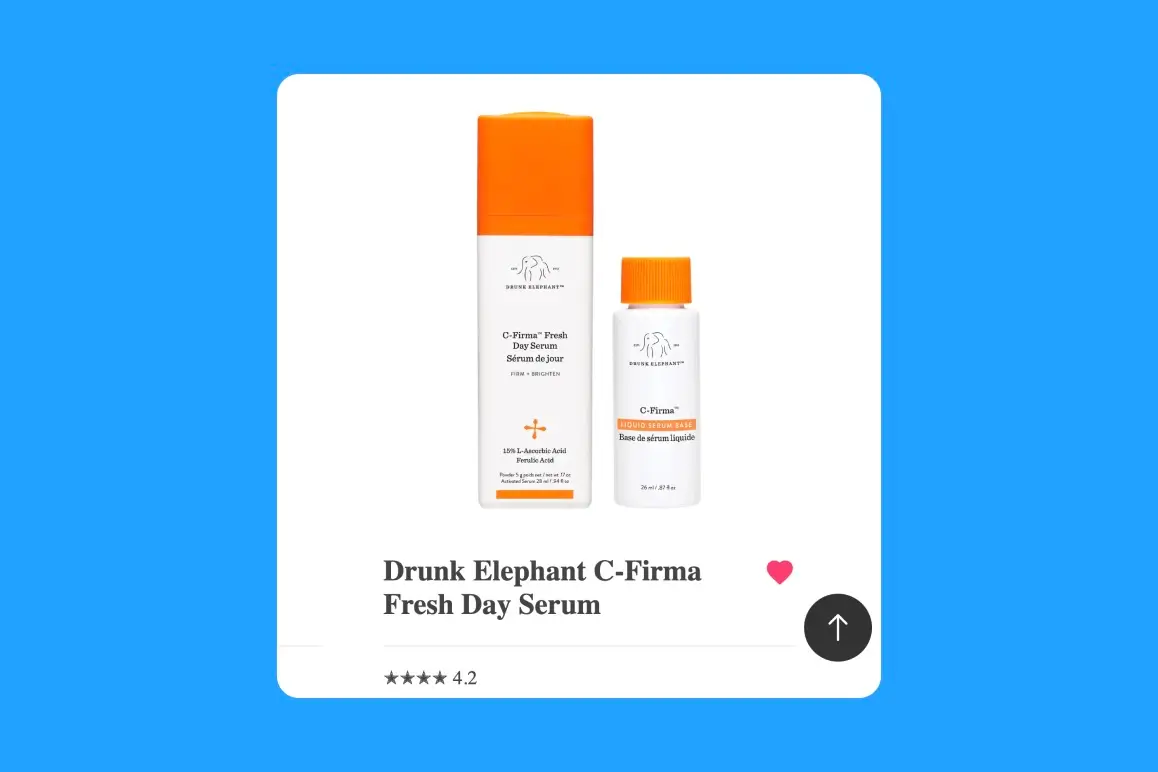
Shoppers rarely decide on the first visit. Etsy lets people tap a heart to save an item to favorites, with optional collections that can be private or public. Airbnb wishlists hold up to 100 listings each, and collaborators can add notes and vote. A shortlist gives people a valid reason to come back.
SpreadSimple has the same feature, and one difference matters for your members: it works without login. Etsy and Airbnb tie saved items to an account. SpreadSimple stores favorites in the visitor's browser, so nobody has to sign up. Please note that favorites last only until the visitor clears website data, and Incognito mode can't save them.
To turn it on:
- Go to Content → Content options and switch on Allow visitors to save favorites. Save the changes.
- Heart buttons now appear next to item images. Saved items show up at your site address followed by ?favorites=1.
- For a proper page, open Pages & links, click Add link, and paste ?favorites=1 as the URL.
- Rename the link and set a title and subtitle in the aliases. The result is a "My favorites" page in your menu.
Favorites suit wholesale lists, where buyers shortlist products before ordering, and directories, where people save suppliers to compare later.
Charging for membership
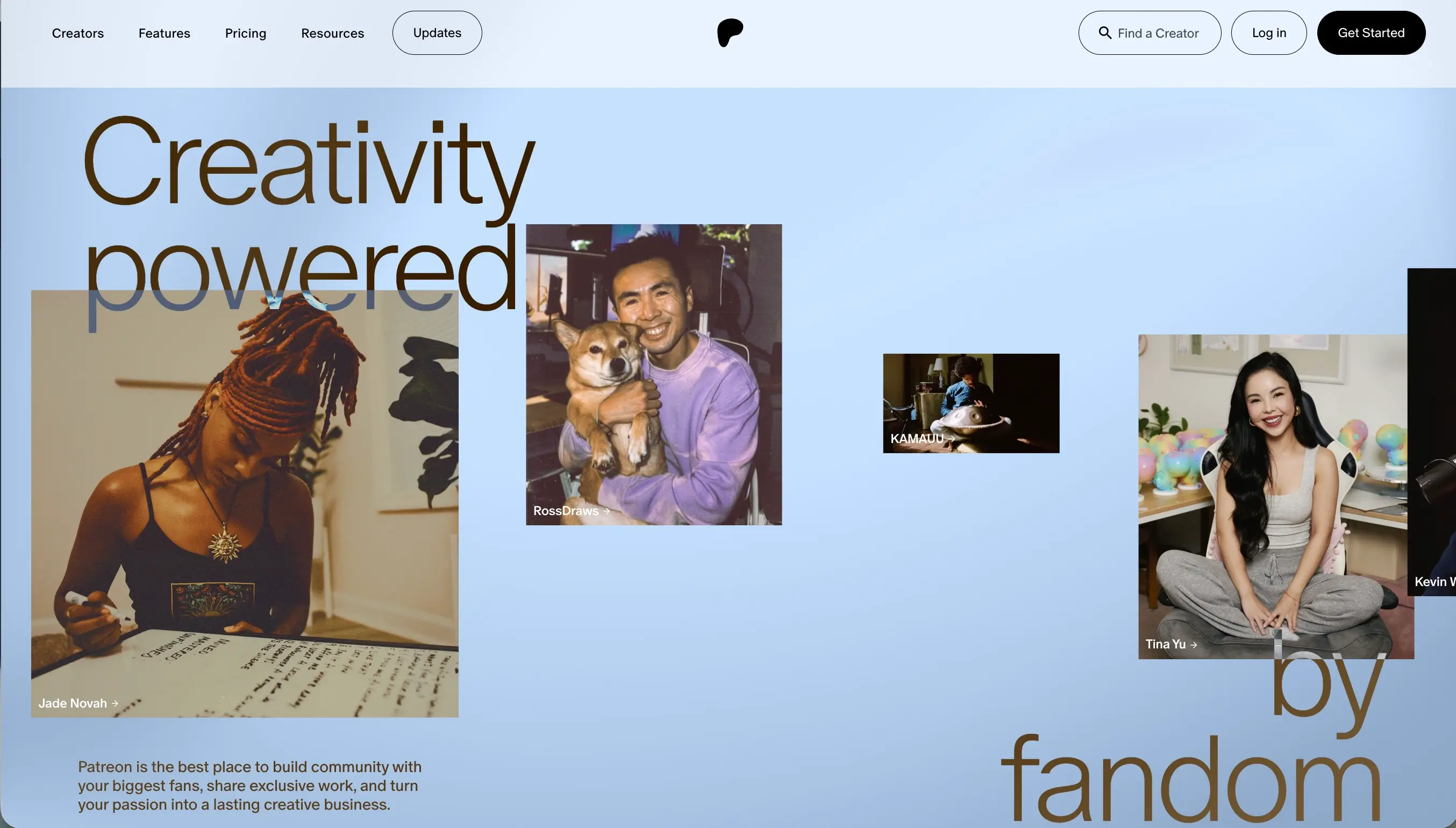
Let’s look at a successful business model to help you choose the right payment structure. Patreon (opens new window), for example, requires a monthly fee in exchange for exclusive content, perks or community access. You can apply it, or choose something that suits your project better. Whatever you pick, the payment tool collects the money, and the members sheet decides who gets in.
Three common charging models:
- Recurring subscription. Monthly or yearly access, good for communities and resource libraries.
- One-time payment. Lifetime access to a course or a template pack.
- Invoice or approval. Suits B2B and wholesale, where you vet buyers before adding them.
FAQ
Do members need a password?
No. Members enter their email, then use the magic link or the validation code from the message they receive.
Can I restrict a single item, not a whole page?
Yes. Add a column with group names to your source sheet and select it in the access rules. Use commas to give several groups access to one item.
What do visitors without access see?
Restricted pages disappear from the menu and can't be opened by link. If a visitor has nothing to see, they get an empty-state message that you write yourself.
Can I hide an item from just one group?
Yes. Put an exclamation mark before the group name, for example !trial, and everyone except that group can see the item.
Can I use my own Google Sheet for the members list?
Yes, if it has headers and a user list, is shared as "Anyone with the link can view", and has the SpreadSimple service account invited as an editor. For a sheet in a shared drive, add that account as a drive member.
Is Favorites the same as a member account?
No. Favorites need no login and are stored in the visitor's browser. They disappear when website data is cleared.
Start with a directory or catalog template
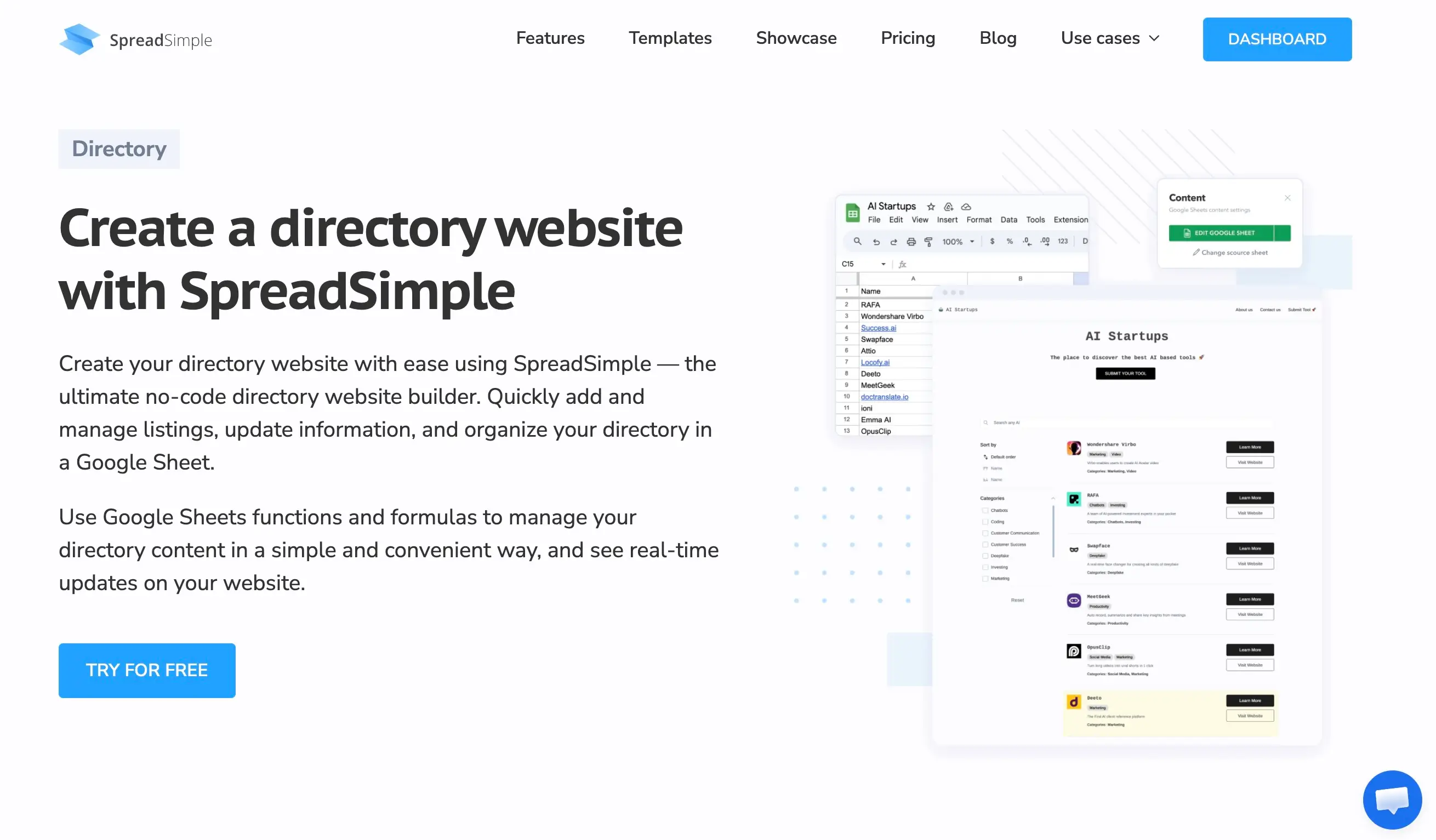
One of the hassle-free, easy ways to create a working membership website is to begin with a structure that has already been tried and tested. Pick a directory or catalog template, connect your sheet, add your first members, and test the login. Browse the options on the listings and directory page and build the first version this week.
We hope this guide helped you understand how to password protect a website. Check out other posts in our blog to find more insightful tips!